IELTS computer test tools and keyboard shortcuts
Last verified 6 October 2026 · 5 min read · ieltspractice.app
Quick answer
The IELTS computer test gives you a timer, highlighting, notes, copy and paste, a Writing word count and a Listening Review button. IELTS partner IDP suggests learning Ctrl+C (copy), Ctrl+V (paste) and Ctrl+Z (undo). You can try the tools in free familiarisation tests before your test.
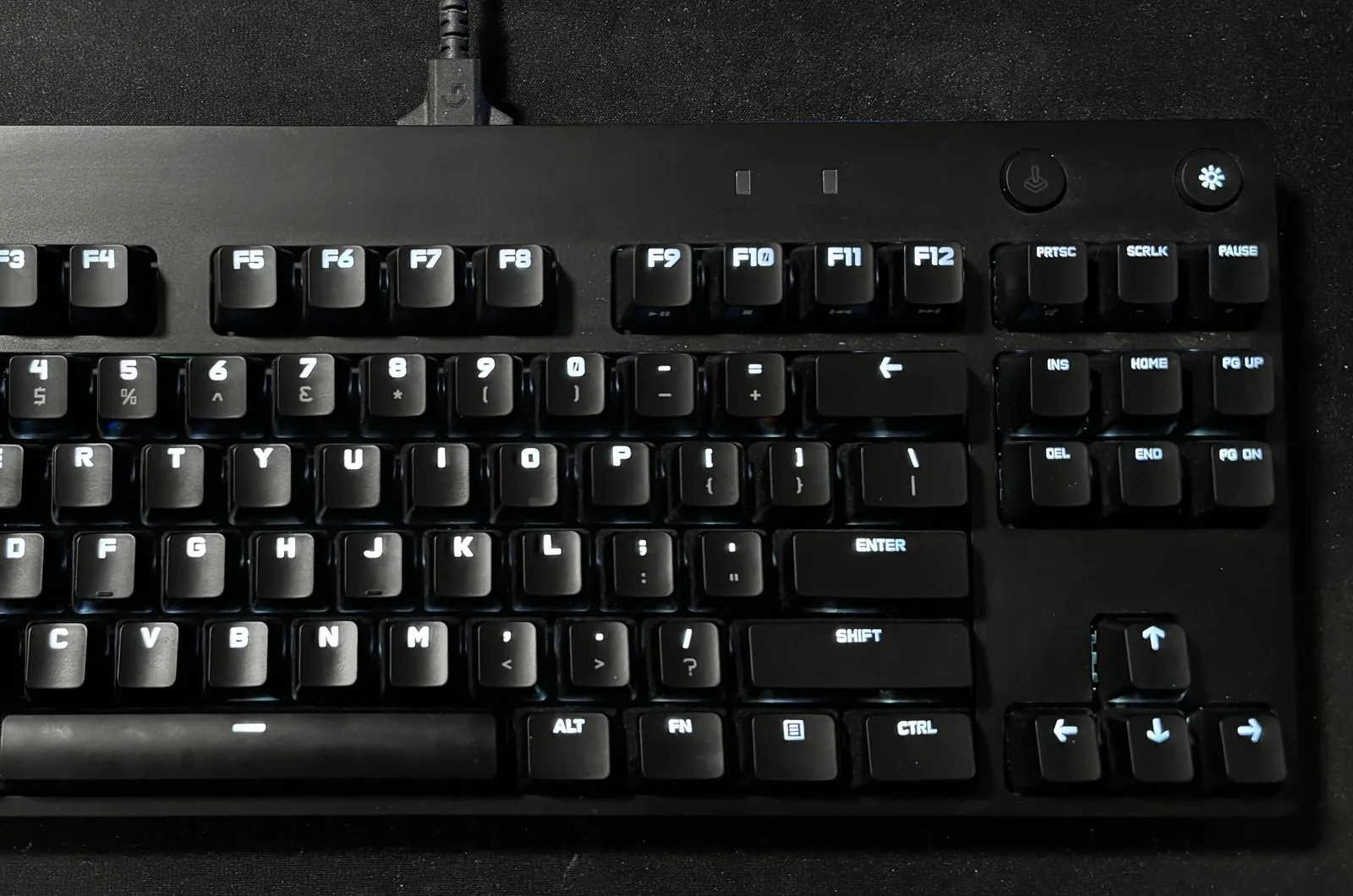
Photo: AzureSaturn — Wikimedia Commons (CC0)
Which tools does the IELTS computer test have?
The tools are on screen in Listening, Reading and Writing. Speaking is a live conversation with an examiner, so it has no on-screen tools. For how the whole test works, read our guide to computer-delivered IELTS.
The table lists the tools that IDP and the British Council describe. They are two of the organisations that run IELTS. This page is about the real test only. Our own practice screens have a timer, and a word count in Writing, but no highlight or notes tool that you can use yourself.
| Tool | What it does | Sections |
|---|---|---|
| Timer | Shows the time left at the top of the screen. In Reading and Writing it turns red and flashes at 10 and 5 minutes. | Listening, Reading, Writing |
| Highlight | Colours the words you select, so you can find them again. | Reading, Listening |
| Notes | Adds your own note to the words you select. | Reading, Listening |
| Copy and paste | Copies words from the text or your notes into an answer. | Reading, Writing |
| Word count | Shows how many words you have typed. | Writing |
| Review | Marks a question you want to check again. Its number changes from a square to a circle. | Listening (as IDP describes it) |
| Question navigation | Lets you move forward and back between questions as often as you need. | Listening, Reading, Writing |
| Help | Explains how to answer the task you are doing. | Listening, Reading, Writing |
| Settings | Changes the text size and the background colour. | Listening, Reading, Writing |
| Volume | Changes how loud the recording is, at any time. | Listening |
Sources (9)
How to highlight and make notes on screen
To highlight, hold down the left mouse button and drag over the words. Then right-click and choose Highlight. To add a note, select the words in the same way, right-click and choose Notes. This is how the British Council tutorial explains it.
IDP says you can use highlighting and notes in Reading and Listening. In Reading, the passage is on the left and the questions are on the right. Mark only the words you will need, such as names, dates and key words from the questions.
Do you still get paper for notes?
Yes. IDP says you can write notes on the login details sheet that you get at the start of the test. IDP Bangladesh also says you may use the rough paper provided to take notes in Listening.
Copy, paste and the word count
IDP suggests copying words from the Reading passage into gap-fill answers. A gap-fill question asks you to complete a sentence with words from the text. This helps you avoid spelling mistakes.
In Writing, IDP says basic editing such as copy and paste is available. Be careful: the band descriptors, the guide examiners use to mark Writing, say any copied rubric, meaning the wording of the task, must be discounted (not counted). See how words are counted in IELTS.
The word count is in the lower-left corner of the Writing screen, IDP says. IELTS does not explain how it counts numbers or short forms such as “don’t”. To check a practice answer, use our IELTS word counter.
IELTS computer test keyboard shortcuts
We found no official list of keyboard shortcuts for IELTS on computer. IDP’s time advice names three basic shortcuts: Ctrl+C to copy, Ctrl+V to paste and Ctrl+Z to undo. Ctrl is the Control key on your keyboard.
Other shortcuts, such as Ctrl+X (cut) or Ctrl+A (select all), are not named on the IDP or British Council pages we checked. Do not plan to rely on them. Instead, check what works in the official familiarisation test.
This page is about the computer test at a test centre. IELTS Online is different: IELTS says you take it at home or in another private place. If you book it, read the IELTS Online information from IDP or the British Council.
| Keys or steps | What it does | Where it is named |
|---|---|---|
| Ctrl+C | Copy the words you selected | IDP advice for IELTS on computer |
| Ctrl+V | Paste the words you copied | IDP advice for IELTS on computer |
| Ctrl+Z | Undo your last change | IDP advice for IELTS on computer |
| Select text, right-click, choose Highlight | Highlight the selected words | British Council tutorial |
| Select text, right-click, choose Notes | Add a note to the selected words | British Council tutorial |
How to use the tools well
Highlight the key words in the questions and in the passage, so you can find the important details again. IDP India suggests this for Reading and Listening.
In Reading gap-fill questions, copy words from the passage instead of typing them, so the spelling is right. In Writing, IDP Nepal says copy and paste can help you move your points into a better order. But do not overuse it: IDP Nepal warns that repeated phrases can lower your score.
Do not spend too long on one hard question. IDP India suggests marking it and coming back if you have time. In Listening, the Review button does this.
Practise with the official familiarisation tests
A familiarisation test is a free practice version of the computer test. It shows you the screens and the tools. IDP offers Listening, Academic Reading and Academic Writing familiarisation tests. The British Council offers versions for both IELTS Academic and IELTS General Training.
IDP says its familiarisation tests are not timed. It also says the timing, highlighting and notes work differently from the real test. So use them to learn the screens, not to practise your timing.
For timed practice, write full answers with a clock running. Typing speed matters too, so check yours with our free IELTS typing test.
How much time do you get for each part?
Listening takes about 30 minutes, and on computer there is no extra time to copy answers to an answer sheet. Reading takes 60 minutes. Writing takes 60 minutes: about 20 for Task 1 and about 40 for Task 2.
Speaking takes 11–14 minutes with an examiner, so it is not in the chart. For ways to plan each part, read our IELTS time management guide.
| Item | Value (minutes) |
|---|---|
| Listening | 30 |
| Reading | 60 |
| Writing | 60 |
Frequently asked questions
Can I copy and paste in the IELTS computer test?
Yes. IDP says you can copy and paste from the text and from your notes, and in Reading you can copy words from the passage into your answers. In Writing, basic editing such as copy and paste is available. But the band descriptors say any copied rubric, the wording of the task, must be discounted (not counted).
Can I use Ctrl+C and Ctrl+V in IELTS on computer?
IDP’s advice for IELTS on computer suggests learning Ctrl+C (copy), Ctrl+V (paste) and Ctrl+Z (undo) to save time. We found no official list of other shortcuts, so try them in the official familiarisation test first.
Can I highlight in IELTS Listening on computer?
Yes. IDP says you can use highlighting and notes in both Listening and Reading. Select the words, right-click and choose Highlight or Notes.
Is there a word count in IELTS Writing on computer?
Yes. IDP says the number of words you have typed is shown in the lower-left corner of the Writing screen. IELTS does not explain how this counter counts numbers or short forms.
Can I mark a question and come back to it later?
Yes. IDP describes a Review button in Listening. It changes the question number from a square to a circle so you remember to check it. You can move forward and back between questions as often as you need.
Can I write notes on paper in IELTS on computer?
Yes. IDP says you can write notes on the login details sheet that you get at the start of the test, and IDP Bangladesh mentions rough paper for Listening. You can also make notes on screen with the Notes tool.
Can I change the font size on the IELTS computer test?
Yes. The Settings button lets you change the text size and the background colour. In Listening, you can also change the volume at any time.
Is the familiarisation test the same as the real test?
It is close. IDP says its familiarisation test is a close copy of the real computer test, but it is not timed. Also, the timing, highlighting and notes work differently. Use it to learn the screens.
Sources
- IDP IELTS Bangladesh: IELTS on Computer
- IDP IELTS Bangladesh: Writing preparation for IELTS on Computer
- IDP IELTS: How IELTS on computer works
- IDP IELTS Nepal: How to manage time effectively during IELTS on Computer
- IDP IELTS Nepal: 10 expert tips to ace IELTS on Computer
- IDP IELTS India: IELTS Reading on computer
- IDP IELTS Bangladesh: IELTS on Computer familiarisation tests
- British Council: IELTS on computer test
- British Council: IELTS familiarisation test
- British Council Bangladesh: Computer-delivered IELTS tutorial, Introduction
- British Council Bangladesh: Computer-delivered IELTS tutorial, Highlighting text
- British Council Bangladesh: Computer-delivered IELTS tutorial, Making notes
- British Council Bangladesh: Computer-delivered IELTS tutorial, Help button
- British Council Bangladesh: Computer-delivered IELTS tutorial, Listening
- IELTS: Writing band descriptors (PDF, updated May 2023)
- IELTS: Academic Listening test format
- IELTS: Academic Reading test format
- IELTS: Academic Writing test format
- IELTS: Academic Speaking test format
- IELTS: Ways to take IELTS (including IELTS Online)
- IDP IELTS Bangladesh: Listening preparation for IELTS on Computer
- IDP IELTS India: How to use IELTS on Computer features to your advantage
Facts on this page last checked against these sources on 6 October 2026.
Keep reading
Independent IELTS preparation. ieltspractice.app is not affiliated with IDP, Cambridge English, or the British Council.